Convert Evaluation Sheets
How to Export & Print Evaluation Sheets
Part 1 — iClassPro
1
iClassPro
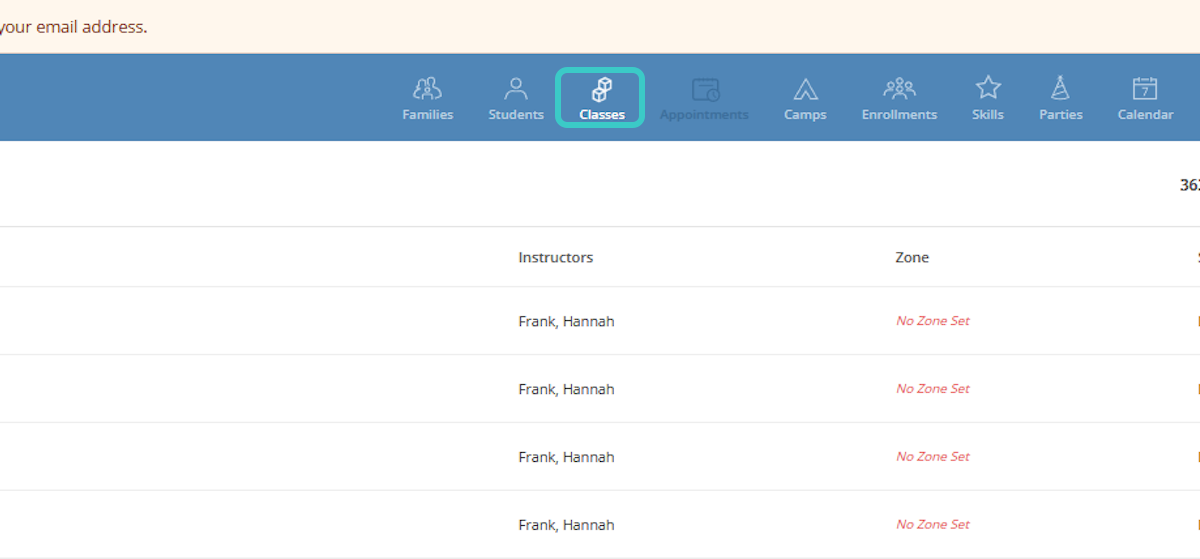
Log into iClassPro and click Classes in the top navigation bar
2
iClassPro
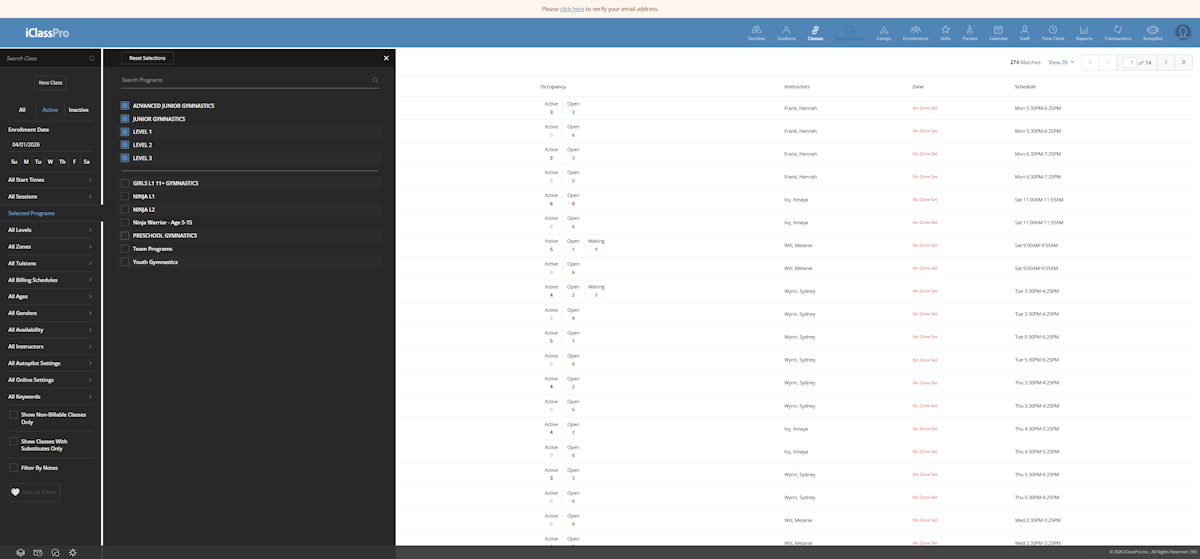
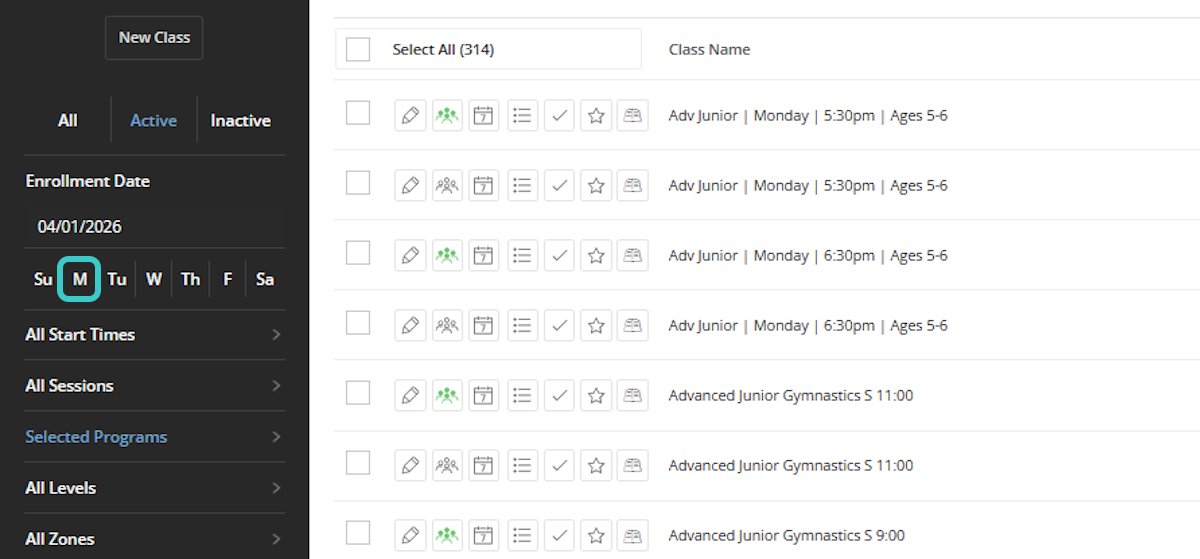
Filter by program, then select the specific day you want to print
3
iClassPro
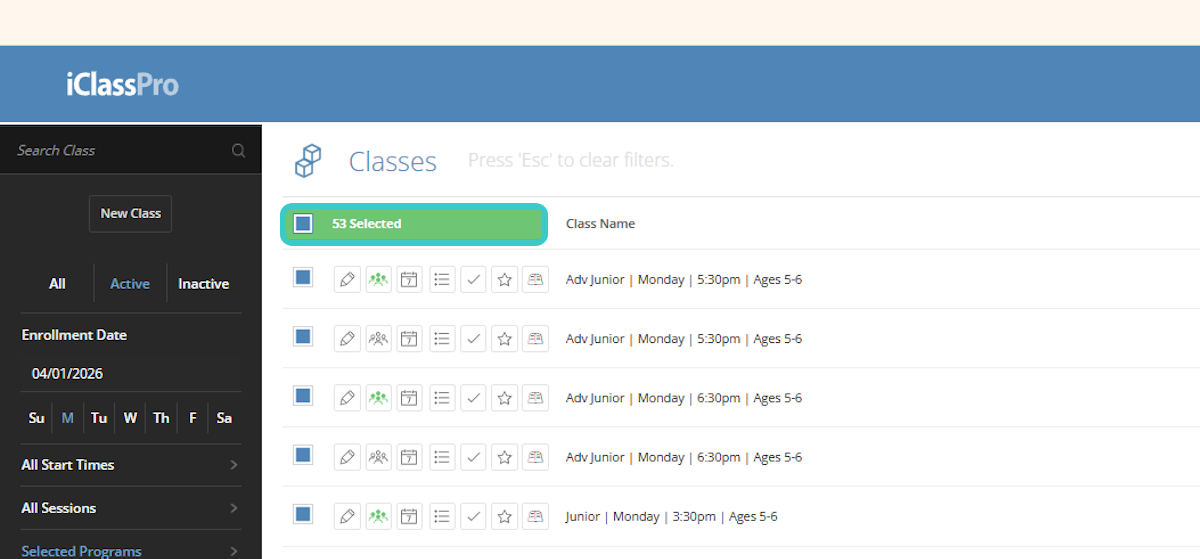
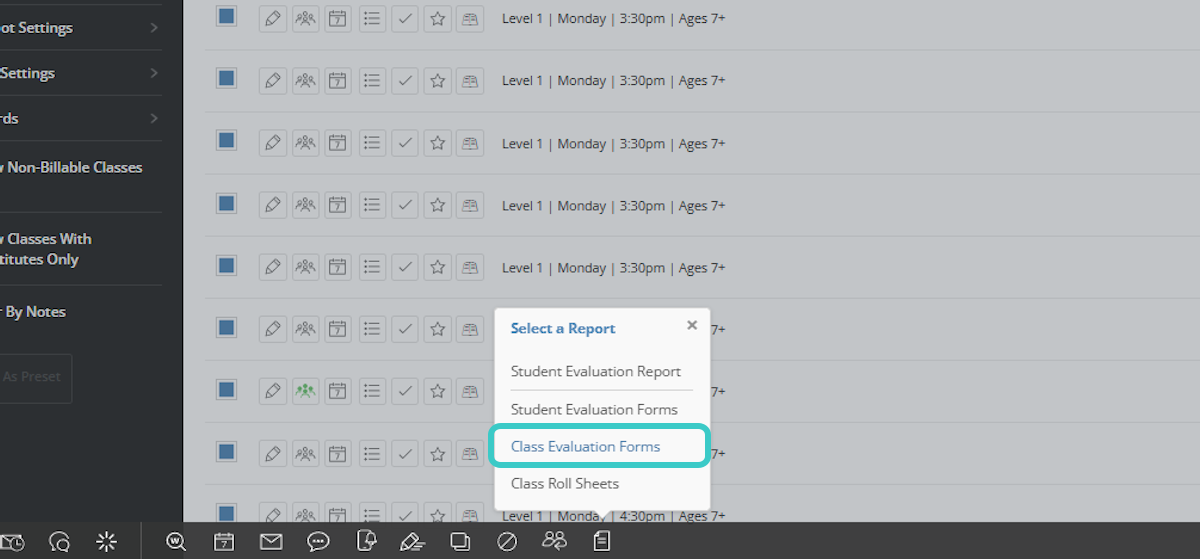
Select all classes, then click Reports → Class Evaluation Forms
4
iClassPro
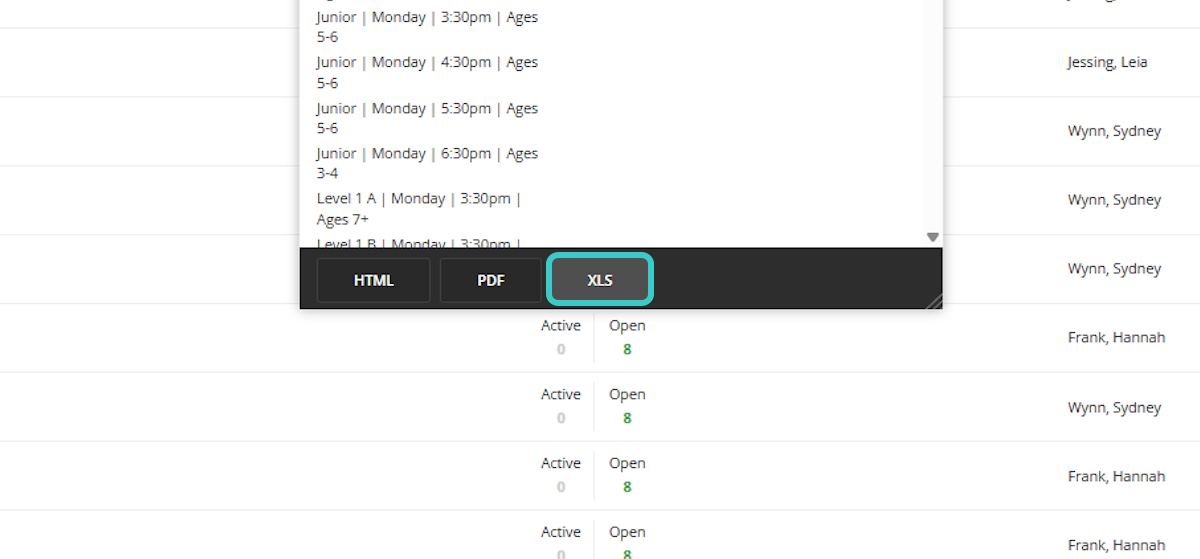
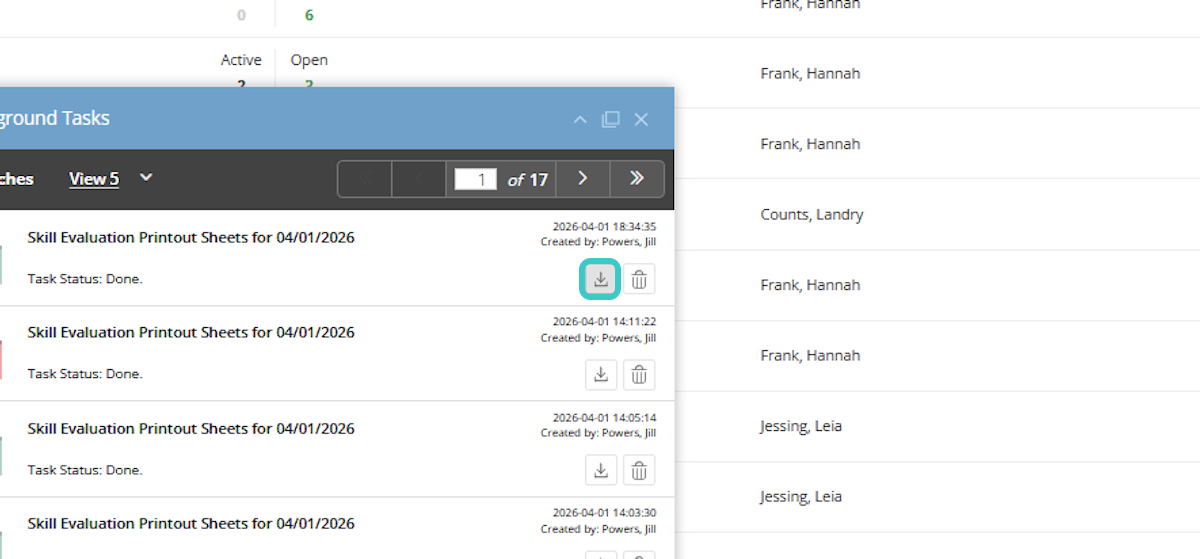
Select XLS format and download the report to your computer
Part 2 — evalconvert.com
5
evalconvert.com
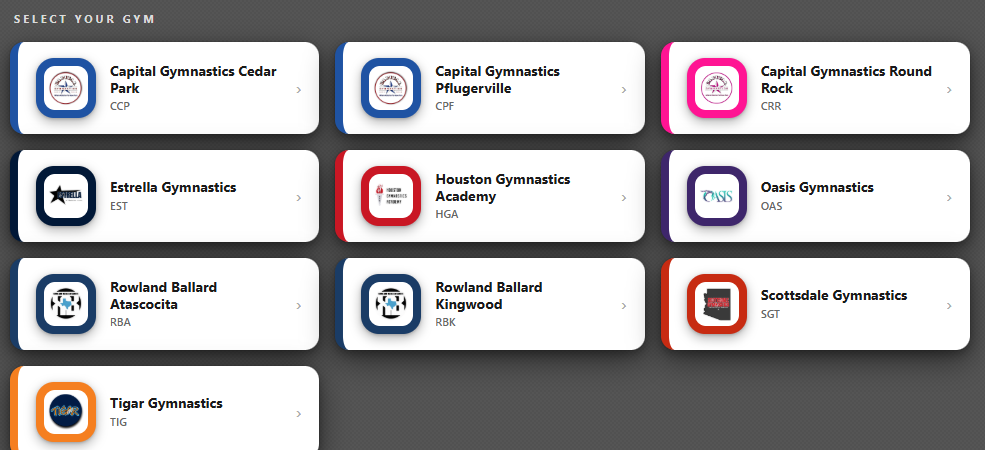
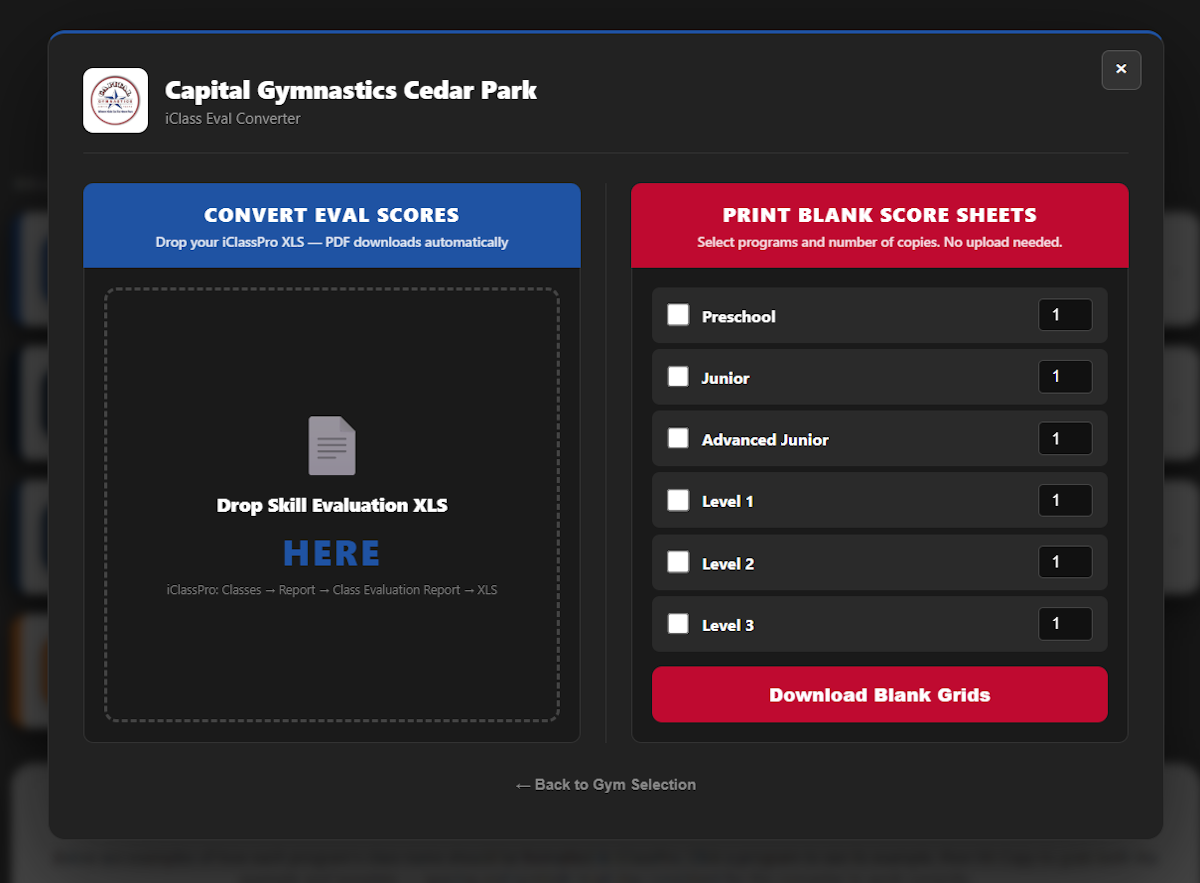
Go to evalconvert.com and select your gym
6
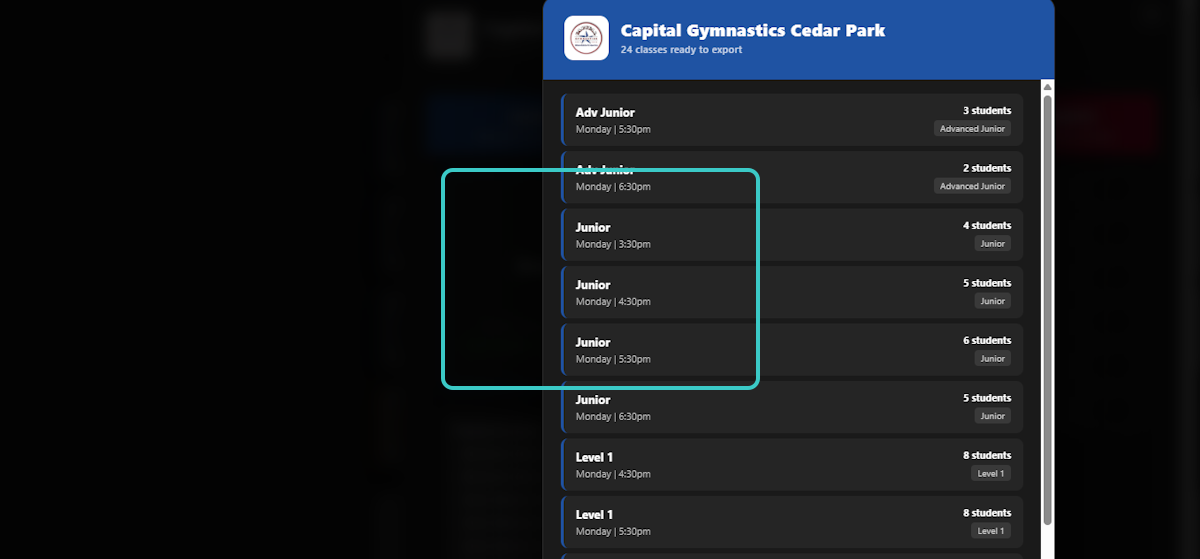
evalconvert.com
Drop the XLS file — review the class list that populates
7
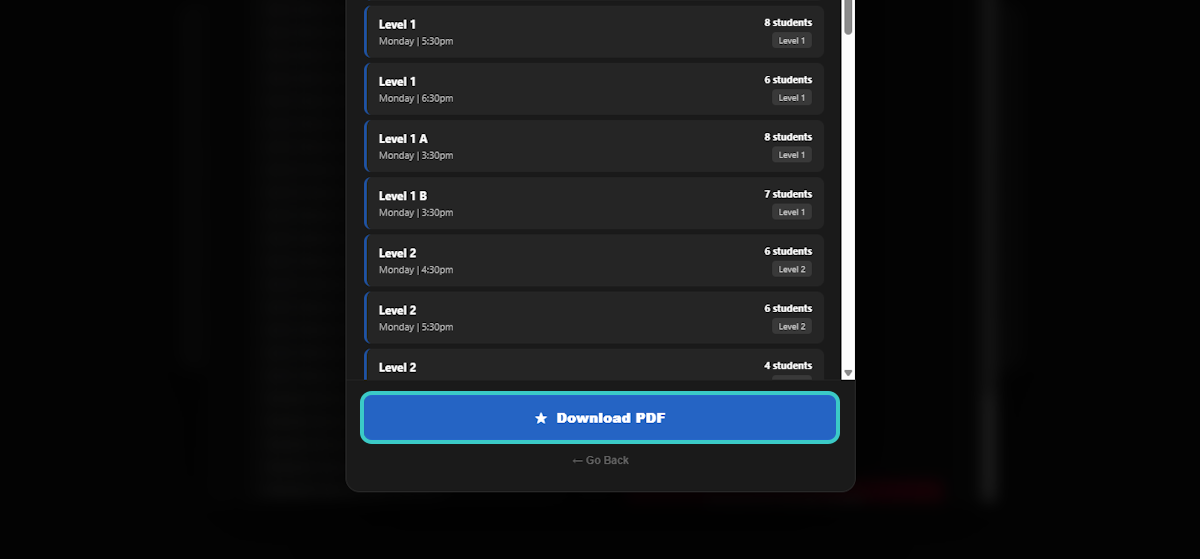
evalconvert.com
Click Download PDF — your branded eval sheets are ready
⚙ Class Name Format Guide (iClassPro)
Required Class Name Format
Program | Day | Time | Ages
Example
Preschool | Monday | 3:30pm | Ages 3-4
Accepted Program Keywords
Preschool
Junior
Advanced Junior
Level 1
Level 2
Level 3
See Interactive Examples & Copy-Paste Templates
Live format examples for every program — click any to copy the template straight into iClassPro. Includes A/B split naming and parenthetical notes.
→
Quick Reference
What this tool does · How it works · Troubleshooting
✓ Works in this tool
Preschool · Junior · Advanced Junior
Level 1 · Level 2 · Level 3
Level 1 · Level 2 · Level 3
The converter reads these programs and builds branded star chart PDFs for every class.
! Not yet standardized
Ninja · Tumbling · Cheer
IGT · Specialty Classes
IGT · Specialty Classes
Each gym runs its own version — these haven't been standardized across all 10 locations yet. Please reach out to Kim or Jayme if you need help brainstorming ideas or structuring a key-component version for your gym.
How it works
iClass is a single-system database.
Every program in your account — gymnastics, ninja, tumbling, cheer — shares the same scoring scale behind the scenes. It's stored once at the account level, not per program. When gymnastics moved to the 1‑star key-component system, every other program flipped with it. There's no toggle to keep one program on a different scale.
How the converter actually reads your file.
The star chart system isn't just pulling text — it's reading structured data and rebuilding it into a PDF. When you upload a file, the backend (Python) does four things in order:
- Reads the class name to identify the program (Preschool, Level 1, etc.)
- Loads the correct skill template for that program
- Maps every student and score into exact positions on the chart
- Draws the PDF — stars, circles, colors, layout
That's why formatting matters. The class name isn't just a label — it's part of how the system knows what to build. If the structure changes (like adding text before the program name), the system can still guess the level, but it loses the ability to correctly place things like time, ages, and identifiers. Keeping the format consistent is what lets everything else line up correctly.
Why Ninja and Tumbling aren't in here yet.
Each gym currently runs its own skill list for these programs — no two match. To add them to this tool, all 10 gyms need to agree on a single standardized key-component breakdown for every Ninja and Tumbling skill. That's weeks of curriculum work across coaches, managers, and leadership. It's not a code change, and it's not a bug — it's a real project, and it's on the roadmap.
If something's off
1
File won't upload
Must be XLS — not PDF or CSV. Go back to Step 4 and choose XLS when exporting.
2
Missing a class?
Class name needs a program keyword (Preschool, Junior, Level 1, etc). Classes without one are silently skipped.
3
Weird class name on PDF?
Rename in iClassPro to match: Program | Day | Time | Ages
4
Extra pages?
Over-capacity classes auto-split into (pg 1/2). Normal — print both.
Need format help?
Interactive examples on evalconvert.com
→